
What the file actually represents
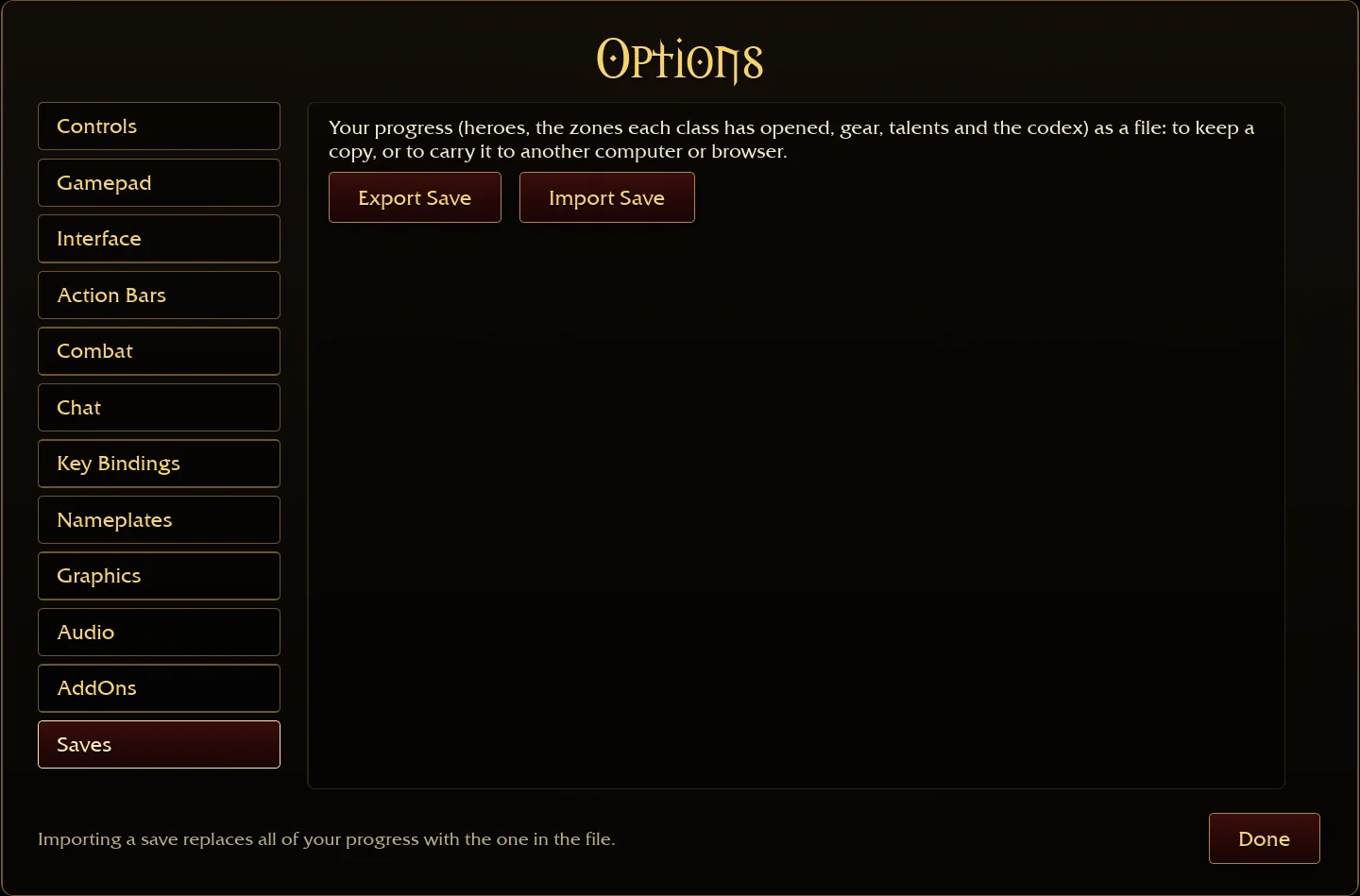
The current Saves screen describes the account’s progression: heroes, zones opened by each class, equipment, talents and codex. This is broader than preserving the last selected character.
It does not promise to suspend and resume a live run. The between-run progression and temporary spell and jewellery setup are different things.
Keep a backup before importing
The browser helper names exported files AzerothSurvivors YYYY-MM-DD HH-MM-SS.sav and accepts .sav or .txt in its file picker. Importing is a full replacement after the game checks the selected file and asks for confirmation.
- Export the account you want to keep
Open Options → Saves in the original game and choose Export Save. Keep the downloaded .sav file in a location you can find.
- Back up the destination too
If another browser or computer already has progress you care about, export that account before importing a different one. The accounts are not merged.
- Choose the saved file on the destination
Open Options → Saves on the destination, choose Import Save and select the exported file. Read the game’s validation and replacement prompt before confirming.
- Confirm only the intended replacement
Confirm if the selected file is the account you intend to use. Check the expected class, gear and zone progress afterward. A rejected or unreadable file does not establish a successful import.
Transfer is a file operation, not automatic sync
The original UI explicitly offers carrying progress to another computer or browser. That is a manual export/import path, not evidence of a cloud account synchronising all installations.
Community reports describe moving progress between PC and mobile. This guide has inspected the browser interface but has not tested every browser/Windows pair or file-version combination. Check the destination’s actual import support and preserve both original files before replacing anything.
Storage locations and recovery limits
A community reply in the original announcement thread places desktop files under C:\Users\<username>\AppData\Roaming\wenilla-rogue. This is a reported Windows location, not a verified path for every installation or a documented repair procedure.
The supplied sources do not establish an undelete tool or recovery of an overwritten account without a backup. Avoid treating addon storage or the launcher’s GPU crash log as the player save. If a file fails validation, retain it and its error; do not edit or overwrite your only copy.
Visual reference
Sources & scope
Sources checked 15 October 2026. Menu observations are from the original browser build V0.90.0; dated recordings retain their own scope. This guide does not claim a completed gameplay test.
- Original game — V0.90.0 menusDirect menu inspection on 15 October 2026; screenshots are from this site, not the reconstruction.
- Original save-file helperExport filename, accepted extensions, game validation and confirmation boundary.
- Original announcement commentsCommunity-reported Windows storage location; not independently tested here.